Wait! Don’t Go Yet! 👋
We see you eyeing those adorable outfits! 😍 Before you leave, here’s 10% OFF your first order!
Hurry, your little one’s next favorite outfit is waiting! 🛍️✨

We see you eyeing those adorable outfits! 😍 Before you leave, here’s 10% OFF your first order!
Hurry, your little one’s next favorite outfit is waiting! 🛍️✨
This site is currently being upgraded. You may see some code pages. You can still check out products, and feel free to contact us if you have any issues.
Switching to a new phone can be exciting, but also a little overwhelming since there’s so many steps to do from reinstalling your favorite apps to transferring contacts, photos, and important files, the process can feel like a hassle, especially when you’re worried about losing data or missing something important.
One of the most common challenges users face during this transition is with banking and finance apps. These apps often require extra verification and cannot simply be used right after a transfer. You’ll typically need to unlink them from your old device and reactivate them on your new phone, which can be confusing if you don’t know where to start. Here’s how to easily transfer all your banking apps from your old phones to your new Samsung Galaxy smartphones using a Samsung Smart Switch.
Samsung Smart Switch is a convenient tool from Samsung that helps you transfer your data from your old device to your new Samsung Galaxy phone with ease. Whether you’re switching from an Android, iPhone, or even a Windows device, Smart Switch allows you to move your contacts, messages, photos, apps, and more securely and efficiently.
How to Use Samsung Smart Switch It’s designed to make your transition to a new phone seamless, so you can pick up right where you left off without the hassle of manual backups or lost files. You can transfer data wirelessly, via USB cable, or using a PC, depending on what suits you best.
You can transfer data in three ways:
For most users, wireless transfer is the easiest method.
After transferring your data, don’t forget to unlink your banking or finance apps from your old device and re-verify them on your new phone to continue using them securely.
Once you’ve transferred all your apps, you’ll need to unlink your banking app from your old device. Since banking and finance apps are highly secure, login credentials and authentication data cannot be transferred through Smart Switch. This means you’ll need to log in and reverify manually on your new phone.
Here’s how you can unlink your finance apps from your old phone and activate them on your new device. The list of banking and finance-related apps covered here focuses on popular banking apps in Malaysia
Before switching, make sure to complete your app transfers and prepare your login credentials to ensure a smooth and uninterrupted experience on your new Galaxy device.
The list of banking apps and eWallets is organized in alphabetical order, from A to Z.
If you have access to the old phone:
1. Unregister your device by logging into the app on your old phone > Services > Security and access.
Tap Unregister this device and Unregister.
2. Delete the AIB mobile app from your old phone.
3. Download the AIB mobile app to your new phone.
4. Set up Strong Customer Authentication (SCA) again. We may need to send you a letter with a code; you’ll need the code before you can log in again.
Mobile Access Self-Termination (Unbind Mobile Device). Note: Each User ID can only be activated on one device.
1. Launch BizSmart Mobile Apps and click Side Menu Button
2. Click Mobile Access Self-Termination button.
3. Key in credentials and proceed.
4. Once successfully terminated, proceed to activate in new device.

If you change your smartphone, simply download the Rize app on your new phone and login using your existing username and password.
You will be asked to authenticate and authorize to bind the new device.
The previous tagging to your old device will be removed automatically. You will not be able to access your Rize account from your old device.
A 12-hour cooling-off period now applies to prevent unauthorized transactions.
Yes, you can bind your AmOnline profile to your new mobile device. First you need to unlink your AmOnline from your old/previous device. Launch the AmOnline App on your old/previous device, go to More > Security > Unlink This Device.
Alternatively, follow below steps to bind your device:
1. Log in with your AmOnline credentials.
2. Grant access to biometric login.
3. Grant access to push notification. We strongly recommend you to enable push notification so you can receive timely and important notifications such as: AmSecure Authorisation, transaction status and important announcements.
4. Answer the security question that is randomised for you.
5. Enter the TAC that is sent to your registered mobile number.
6. After successful authentication, your AmOnline profile will be bound to your mobile device.
7. Effective March 2025, if you are binding AmOnline to your mobile device for the first time, or switching to a new device and binding AmOnline to it, you must activate AmSecure at any AmBank ATM.
New Device: Cooling-off period restricts transactions in AmOnline for 12 hours
A 12-hour cooling-off period now applies to prevent unauthorized transactions.
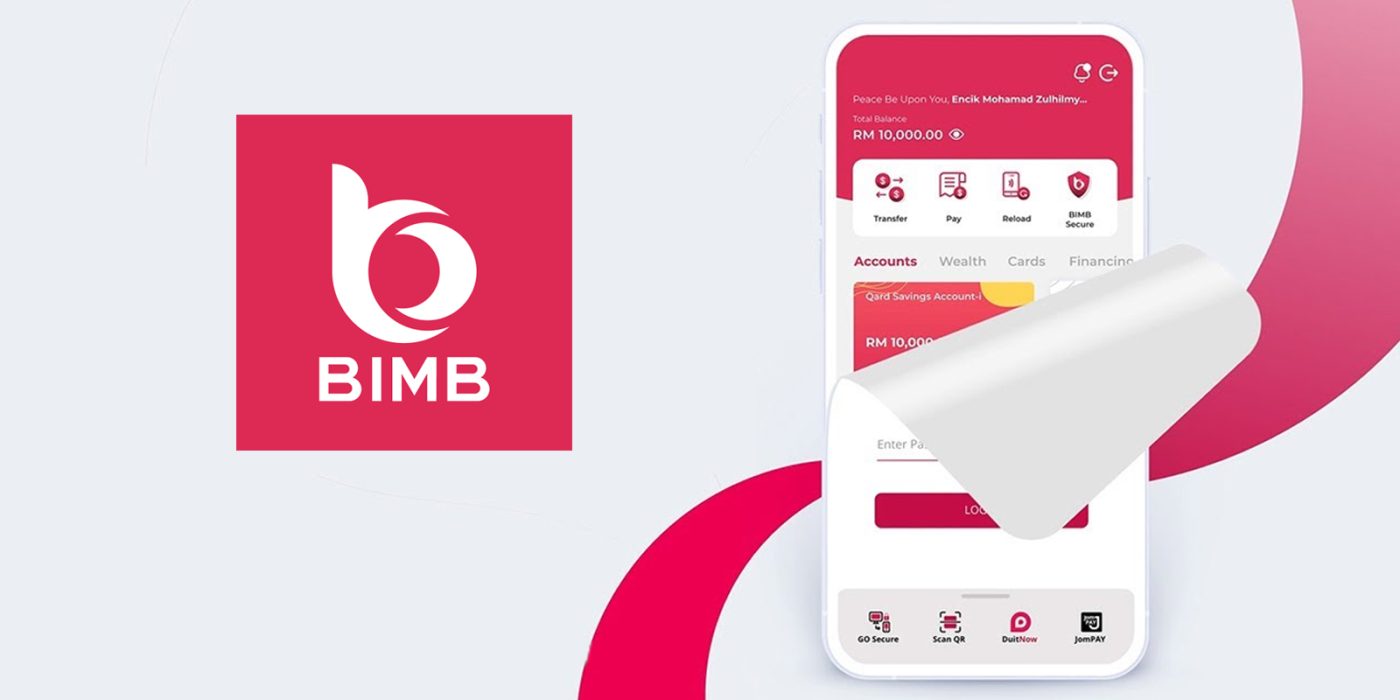
Step 1 – Install BIMB Mobile on your new device. Download BIMB Mobile from the official app store – either Google Play Store for Android or Apple App Store for iOS.
Step 2 – Log in with your details. Once the app is installed, open it and enter your username and password to start the login process
Step 3 – Approve access from your previous device. To confirm it’s you, BIMB Mobile will send a prompt to your old device. Approve the device change from your previous device.
If you don’t have access to your previous device, you can approve the login through BIMB Web. See Step 4 for details.
Step 4 – Request to approve from BIMB Web. Skip this step if you already approved from previous device. If your previous device isn’t available, click on “Try other way,”. Tap on “Approve using BIMB Web” on the next screen.
Step 5 – Approve access from BIMB Web. Skip this step if you already approved from previous device. Next, log in to BIMB Web, you’ll see a request to confirm the login on your new device. Approve the request.
Step 6 – Complete the login. Once you approve the login from your old device or BIMB Web, the new device will be fully linked to your account.
Notes: 12-hour waiting period from the time a new application or request is submitted until it takes effect.
New Device: Cooling-off period restricts transactions in AmOnline for 12 hours
A 12-hour cooling-off period now applies to prevent unauthorized transactions.
• Access your Sandbox Account (if applicable) and Reset TFA:
• If you have a Sandbox account, use your existing phone and TFA to access it.
• Under your account settings, find the option to reset your TFA.
• After resetting, follow the TFA registration steps to set it up again on your new phone.
• If you don’t have a Sandbox account or need further assistance:
Contact Bank Rakyat:
Call their Contact Centre at 1-300-80-5454 (Local) for assistance.
New Device: Cooling-off period restricts transactions in AmOnline for 12 hours
A 12-hour cooling-off period now applies to prevent unauthorized transactions.
• You need to activate the App on a new device. The service on the old device will be automatically deactivated during registration of the new device. Alternatively, you may also manually choose to deactivate it on your old device through the Settings in the App.
Deactivate BSNSecure on the Old Device:
• You’ll be prompted to deactivate the service on your old device during the registration process on the new device.
• Alternatively, you can deactivate it by going to the “Settings” section within the App and selecting the “Unlink Device” option.
• BSNSecure can only be registered to one device at a time.
Upon successful BSNSecure registration, customers can only perform myBSN transactions after 12 hours (Cooling-off Period).
New Device: Cooling-off period restricts transactions in AmOnline for 12 hours
A 12-hour cooling-off period now applies to prevent unauthorized transactions.
• If I change my device, do I have to reset my primary online banking app?
• You need to complete the First Time Login (FTL) on your new device. Please follow the instructions shown on the screen and your new device will be automatically switched as the primary online banking app.
If I lost my phone, can I register for SecureTAC on a new device?
• Yes, you can activate SecureTAC on your new device and you will be prompted to de-register your old device.
• Notes:
Remember Login Credentials, CIMB Octo app will guide through in app prompts.
App will follow up with de-registering SecureTAC on old device.
Cooling-Off Period:
Be aware that there’s a 12-hour cooling-off period when installing the CIMB OCTO App for the first time or on a new device, during which you won’t be able to perform or approve banking transactions.
New Device: Cooling-off period restricts transactions in AmOnline for 12 hours
A 12-hour cooling-off period now applies to prevent unauthorized transactions.

i) Log in to your current device.
ii) Tap on ‘Menu’ > ‘App Settings’ > ‘Devices & Notifications’.
iii) Tap on ‘Remove’ button next to your ‘Current Device’.
iv) Log in to your new device and upon log in you will see a screen about app binding i.e. ‘HLB Connect App on this mobile phone can only be accessed with your username’.
v) You will be asked to enter you’re a 6-digit SMS TAC, ID and Card PIN/Device Activation Code to complete the app binding process.
As you are enabling AppAuthorise on a new device, you will be subjected to 12 hour CoolingOff Period. You will be able to use AppAuthorise to approve your transaction after the CoolingOff Period is over. You can still perform other transactions that do not require AppAuthorise while you are in the Cooling-Off Period.
New Device: Cooling-off period restricts transactions in AmOnline for 12 hours
A 12-hour cooling-off period now applies to prevent unauthorized transactions.
Following registration for online banking you’ll be asked to set up a Secure Key. You can use your phone to set up a Digital Secure Key, on your compatible device using this guide.
1. To activate the Digital Secure Key you will need your online banking username and password.
2. Activate your Digital Secure Key on this device, we will need to send you an activation code to your registered mobile number
3. Input the code once received. It is only valid for a limited time.
4. Create a 6-digit PIN. Re-enter the PIN when prompted.
5. Select ‘Continue’ to enable digital secure key on your device.
6. Log on by entering your details, or select ‘Generate a code’ to log on using your Digital Secure Key.
New Device: Cooling-off period restricts transactions in AmOnline for 12 hours
A 12-hour cooling-off period now applies to prevent unauthorized transactions.

New User Registration or Existing User Login:
• New User: Select “Not yet register as member or i-Akaun?” and complete the electronic Know-Your-Customer (e-KYC) process by verifying your identity through face recognition.
• Existing User: Log in using your existing i-Akaun User ID and Password.
Device Linking (i-Akaun Secure):
• New Users and Existing Users Changing Devices: You need to complete the device linking process, which involves activating i-Akaun Secure.
Process:
• A 6-digit TAC (Transaction Authentication Code) will be sent via SMS to the phone number registered with EPF.
• Ensure your registered phone number has cellular service to receive the SMS.
• Use mobile data or Wi-Fi with a stable internet connection for a smooth process.
Existing users of the KWSP i-Akaun app do not need to activate i-Akaun Secure through the device linking process, as it is done automatically via a silent bind.

You are required to register your Secure2u on your new device and activate it via ATM before using your Secure2u to approve transactions
Notes: Remember Login Credentials. Visit to nearest Maybank ATM is required
Be aware that there’s a 12-hour cooling-off period.

• You can activate OCBC OneToken on another mobile device. This will automatically deactivate OCBC OneToken on your previous device.
• To activate OCBC OneToken, simply download the OCBC Malaysia Business Mobile Banking app on your new device. Then, log in using your credentials and follow the steps outlined in the “Lost/Changed Phone” hyperlink.
• Note: If you have transferred or copied your mobile data / storage from your old device or a cloud storage to the new device, please delete the transferred OCBC Malaysia Business Mobile Banking app and reinstall it before following the above steps. This is to ensure that the older data does not interfere with the new OCBC OneToken activation.

Unbind the Old Device (if applicable) :
| PB engage MY: •Log into the PB engage MY app. •Go to Settings > Device Management. •Unbind the old device. |
| MyPB App: •Log into the MyPB App. •Navigate to Settings and find the Device Management option. •Unbind the old device. |
Activate PB SecureSign (or similar security feature) on the New Device :
| PB engage MY: •Log into the PB engage MY app on the new device. •If you haven’t activated PB SecureSign before, the app will prompt you to do so. •Follow the on-screen instructions to complete the activation process. |
| MyPB App: •Log into the MyPB App on the new device. •If you haven’t activated PB SecureSign before, the app will prompt you to do so. •Follow the on-screen instructions to complete the activation process. |
Public Bank has implemented a 12-hour cooling-off period for PB SecureSign activation on the MyPB App.

If you have a previously authorised device, to change your authorised device, follow these steps:
1. Unlink the previous device via Settings > Security > Authorised Device > Remove Device.
2. Download the latest RHB Mobile Banking App on the new device.
3. Launch the app and log in to your account.
4. Link the new device and follow the on-screen instructions.
Activate Secure Plus via ATM.
Be aware that there’s a 12-hour cooling-off period.

To link your SC Mobile App ID with your mobile device, login using your Online Banking s ID and password on SC Mobile App. You will need data access or internet connection on your device to use this application.
To bind/ link your login account with a trusted mobile device, please follow the below steps:
• Step 1: Click on the login
• Step 2: Continue with the login process.
• Step 3: On successful login to SC Mobile using your Online Banking User ID/ Password, your device will be linked to user account.
Can I access multiple Online Banking ID’s from SC Mobile App on one mobile device?
To secure your login to SC Mobile App, your mobile device is linked to one Online Banking ID only. In case, you wish to access another Online Banking ID, it is recommended (not mandatory) to use a different device. If you still use your current device to login to another Online Banking ID, then a pop-up message will appear during login wherein SC Mobile will seek permission to unlink current device from previous Online Banking ID before it can proceed with linking of new device to another Online Banking IDs.
You can access UOB TMRW from any mobile device as none of your details is stored in your mobile device. All you need to do is to download and install UOB TMRW on your new device.
If your mobile phone number has changed, please update your number via any UOB Malaysia ATM nation-wide.
If you face any difficulties, Call UOB Contact Centre at the number displayed in your UOB TMRW app’s on-screen alert within the 12-hour cooling off period to confirm your request. Log in after 12 hours to complete activation
If you wish to switch your Digital Token onto another device, please download the latest digibank app onto your new device:
iOS users transferring data from one device to another device or via iCloud will need to delete and reinstall the digibank Mobile app on your new device to ensure a complete Digital Token Setup.
You will then be prompted to set up your Digital Token when you first log in. For more information on how to set up your Digital Token, refer to Set up your Digital Token.
( https://www.dbs.com.sg/personal/support/bank-ibanking-digital-token-setup.html )
Upon successful setup, the Digital Token on your previous mobile device will automatically be deactivated.
You will be prompted to key in your 6-Digit PIN once you sign in using your mobile number and password. To ensure your wallet’s security, we will remove your saved credit/ debit details. Re-enter your card details to start transacting.
Download and Install: Install the MyBoost app from the app store on your new device.
Sign In: Open the app and sign in using your registered mobile number and password.
PIN Verification: You’ll be prompted to enter your 6-digit PIN.
Security Measures: To ensure your wallet’s security, saved credit/debit card details will be removed. You will need to re-enter your card details to start transacting.
Account Verification: You may need to verify your account with a selfie and your MyKad.
Log in :
1. Download the Grab app on your new device.
2. Open the app and navigate to the login screen.
3. Enter your registered phone number or email address and PIN.
4. You may be prompted to verify your identity with a selfie or OTP.
For Grab Driver users :
1. You will need to take a selfie every time you log in to your account on a new device.
2. Follow the instructions in the driver app to complete the verification process.
3. If the selfie matches your profile picture in the system, you will be able to log in to your account immediately.
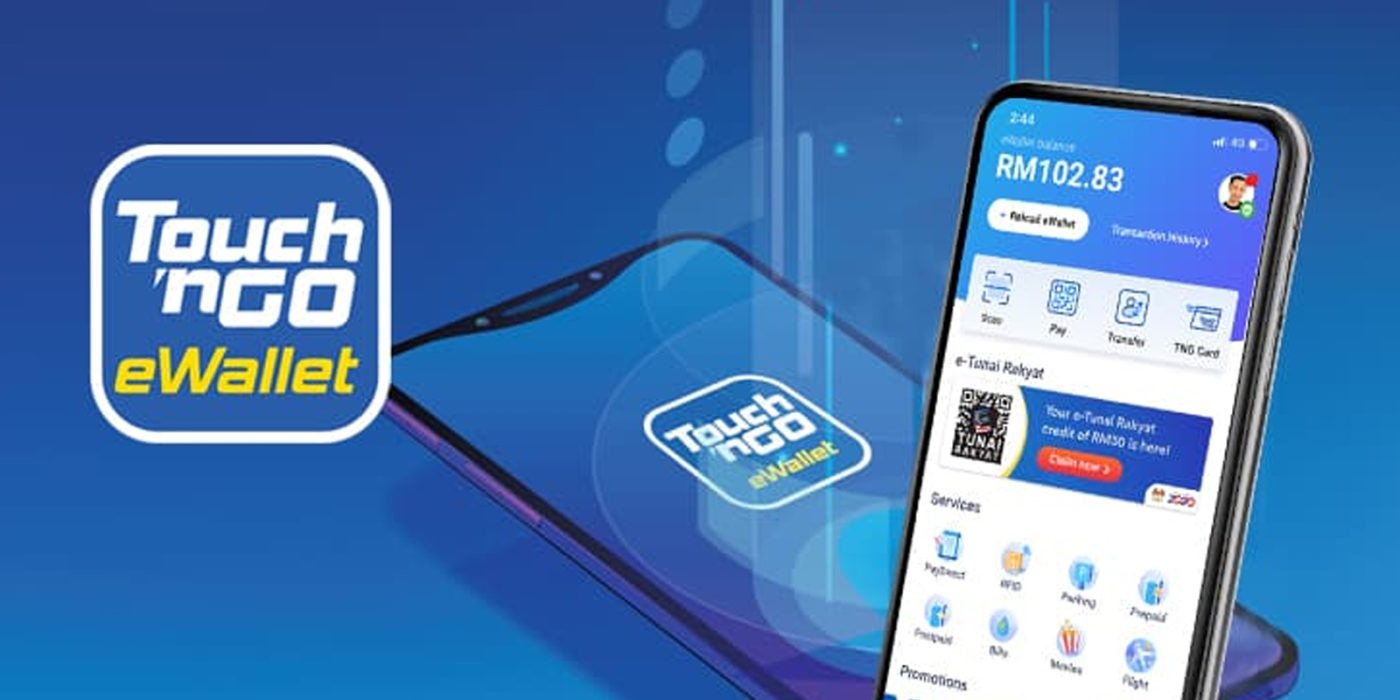
If you ever switch devices, don’t fret! Our eWallet app has got you covered. When you switch to a new device, simply follow these steps:
1. Open the eWallet app on your new device.
2. The app will prompt you to update and link your account to the new device.
3. Alternatively, you can go to Settings and select “Link To This Device” to proceed.
Notes: Follow in-app prompts and TnG PIN.
If you’re planning to buy a new Samsung Galaxy phone—whether it’s from the Galaxy Z Series, Galaxy A Series, or Galaxy S series and want to be fully prepared for the switch, this guide helps make the process smoother. From transferring your apps to setting up your new device with Samsung Smart Switch, everything you need to know is right here.
Ready to upgrade? Shop our latest Samsung Galaxy phones and start your journey with confidence, knowing your data and apps can move with you seamlessly.